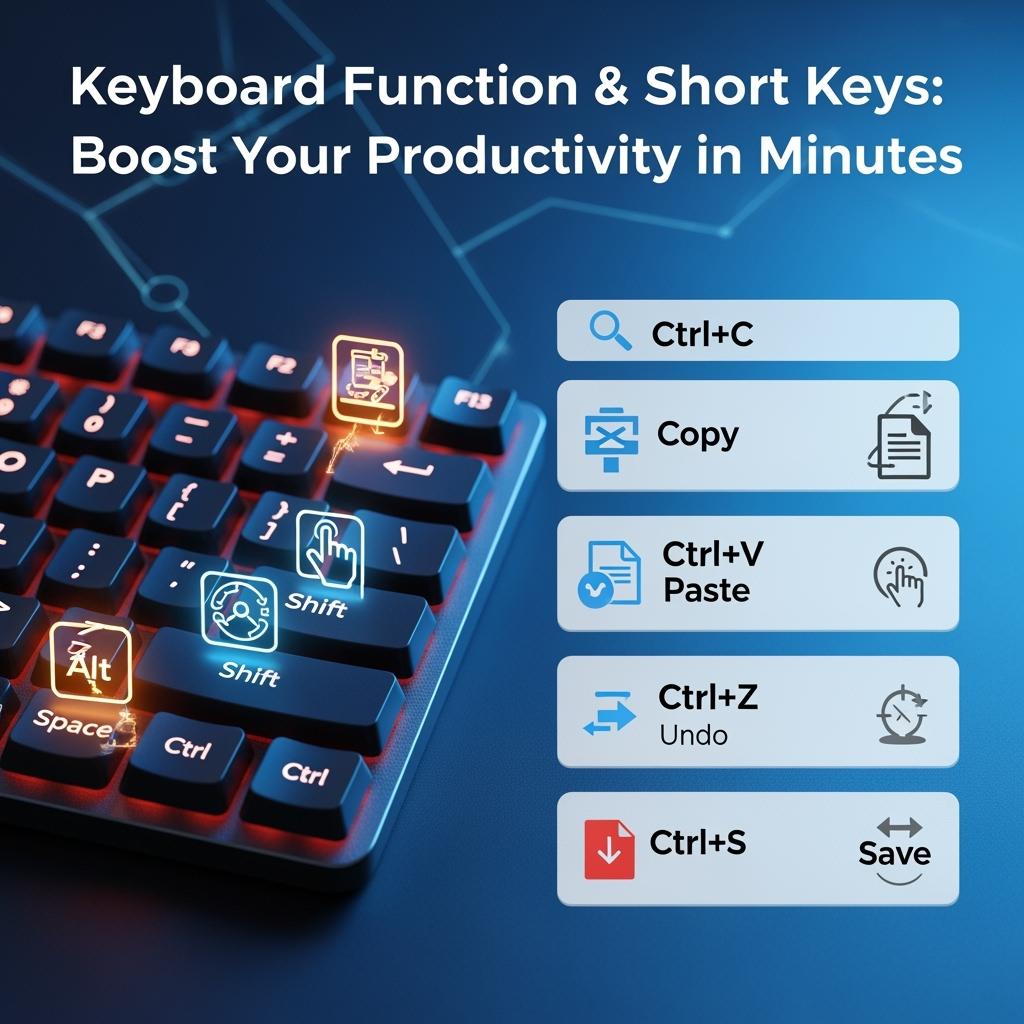
Keyboard Functions & Shortcut Keys: Boost Your Productivity in Minutes
Introduction
Mastering Keyboard Functions and Shortcut Keys is one of the most effective ways to boost productivity and efficiency on any computer. From everyday commands like copy, paste, and save to advanced navigation techniques, Keyboard Functions and Shortcut Keys allow users to work faster, minimize errors, and reduce reliance on the mouse.
Whether for students, professionals, or casual users, learning Keyboard Functions and Shortcut Keys is essential for optimizing workflows, saving valuable time, and unlocking the full potential of modern computing.
Essential Function Keys Explained
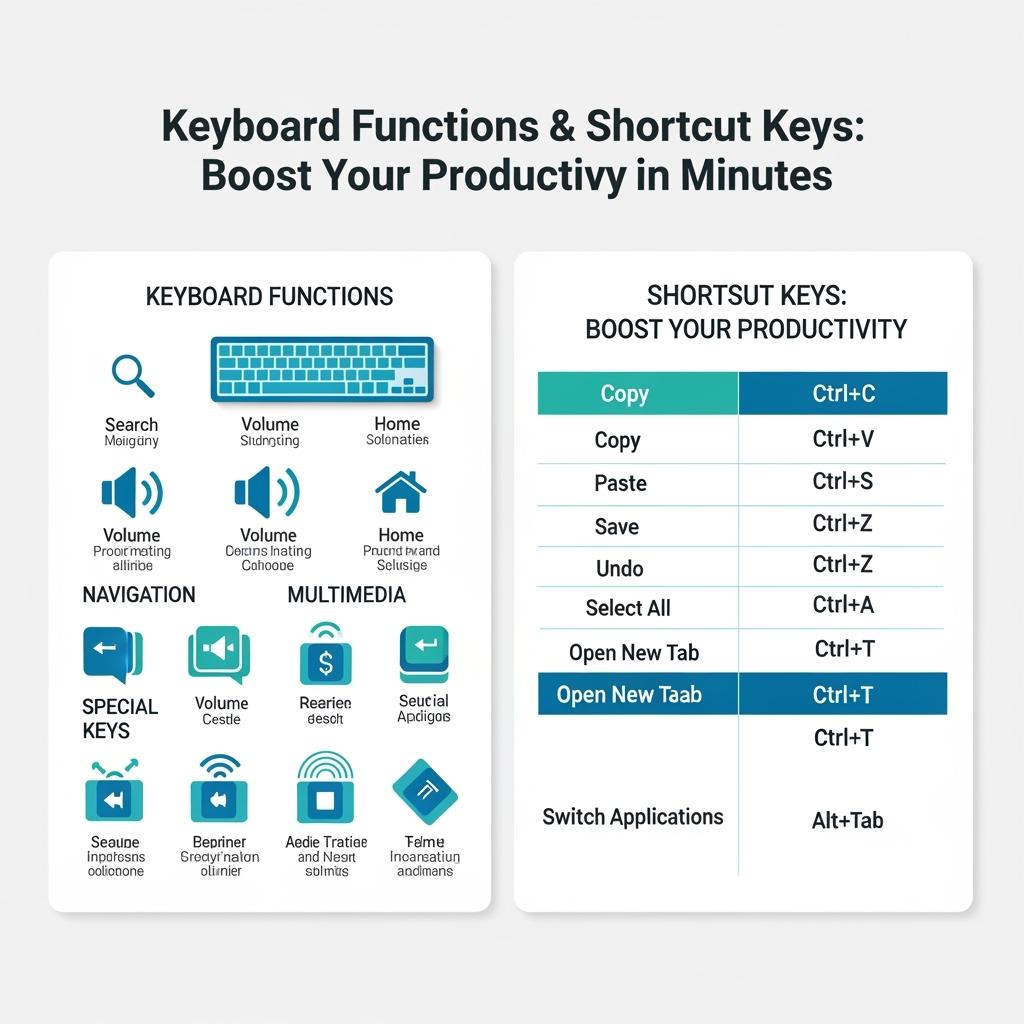
Keyboard Functions & Shortcut Keys: Boost Your Productivity in Minutes
Understanding the Function Keys F1-F12 Row
Function keys serve as powerful shortcuts that perform specific actions across different applications and operating systems. These keys provide instant access to help menus, refresh commands, search functions, and system controls.
F1: Opens help documentation in most applications
F2: Renames selected files or folders
F3: Opens search functionality
F4: Opens address bar dropdown in browsers
F5: Refreshes current page or window
F6: Cycles through screen elements
F7: Activates spell check in word processors
F8: Extends text selection in applications
F9: Sends and receives emails in Outlook
F10: Activates menu bar
F11: Toggles full-screen mode
F12: Opens Save As dialog in most programs
Combination Function Keys
Using function keys along with modifier keys makes shortcuts even more powerful:
• Alt + F4: Closes current application
• Ctrl + F4: Closes current document tab
• Shift + F10: Opens context menu
• Ctrl + F: Opens find dialog
• Ctrl + H: Opens find and replace dialog
Windows Keyboard Shortcuts for Maximum Efficiency
Basic Navigation Shortcuts
Windows users benefit from numerous built-in shortcuts that streamline daily computing tasks. These shortcuts work across all Windows versions and applications.
Essential Windows Shortcuts:
• Windows + D: Shows desktop instantly
• Windows + L: Locks computer screen
• Windows + E: Opens File Explorer
• Windows + R: Opens Run dialog
• Windows + I: Opens Settings menu
• Windows + S: Opens search function
• Windows + X: Opens quick admin menu
• Alt + Tab: Switches between open applications
• Ctrl + Shift + Esc: Instantly launches the Task Manager
Window Management
Efficient window management saves time and reduces screen clutter:
• Windows + Left/Right Arrow: Snaps windows to the sides of the screen
• Windows + Up Arrow: Maximizes current window
• Windows + Down Arrow: Minimizes or restores window
• Windows + M: Minimizes all windows
• Alt + F4: Closes current window
• Alt + Space: Opens window control menu
Virtual Desktop Shortcuts
Modern Windows supports multiple virtual desktops for enhanced organization:
• Windows + Ctrl + D: Generates a new virtual desktop
• Windows + Ctrl + F4: Closes the current virtual desktop
• Windows + Ctrl + Left/Right: Switches between virtual desktops
• Windows + Tab: Opens Task View to show all available desktops
Mac Keyboard Shortcuts Every User Should Know
Basic Mac Navigation
Mac users enjoy intuitive shortcuts that integrate seamlessly with macOS design philosophy. These shortcuts enhance workflow efficiency across all Mac applications.
Core Mac Shortcuts:
• Cmd + Space: Opens Spotlight search
• Cmd + Tab: Switches between applications
• Cmd + Q: Quits current application
• Cmd + W: Closes current window
• Cmd + M: Minimizes window to Dock
• Cmd + H: Hides current application
• Cmd + Option + H: Conceals alternative applications
• Cmd + T: Launches a new tab in web browsers
• Cmd + N: Creates new document or window
Advanced Mac Shortcuts
Power users leverage these advanced shortcuts for maximum productivity:
• Command + Shift + 3: Takes a full screenshot
• Cmd + Shift + 4: Takes selected area screenshot
• Cmd + Option + Esc: Force quits applications
• Cmd + Control + Q: Locks screen immediately
• Cmd + Option + D: Shows or hides Dock
• Cmd + Mission Control: Opens Mission Control
Finder Shortcuts
Efficiently navigate through files and folders using these Finder shortcuts:
• Cmd + Shift + N: Creates new folder
• Cmd + Delete: Moves files to Trash
• Cmd + Shift + Delete: Empties Trash permanently
• Cmd + I: Opens Get Info window
• Cmd + 1/2/3/4: Changes Finder view modes
• Cmd + Up Arrow: Navigates to the parent directory
Browser Shortcuts to Navigate the Web Faster
Universal Browser Shortcuts
These shortcuts work across Chrome, Firefox, Safari, and Edge browsers, making web navigation consistent and efficient.
Essential Browser Navigation:
• Ctrl/Cmd + T: Opens new tab
• Ctrl/Cmd + W: Closes current tab
• Ctrl/Cmd + Shift + T: Reopens the last closed tab
• Ctrl/Cmd + L: Highlights address bar
• Ctrl/Cmd + D: Bookmarks current page
• Ctrl/Cmd + R: Refreshes current page
• Ctrl/Cmd + F: Opens page search
• Ctrl/Cmd + +/-: Zooms in or out
• Ctrl/Cmd + 0: Resets zoom level
Tab Management
Efficient tab management prevents browser slowdown and improves focus:
• Ctrl/Cmd + 1-9: Switches to specific tab number
• Ctrl/Cmd + Shift + A: Opens browser extensions page
• Ctrl/Cmd + Shift + Delete: Launches the option to clear browsing data
• Ctrl/Cmd + Shift + N: Opens incognito/private window
• Ctrl/Cmd + E: Uses selection for find
• F12: Opens developer tools
Navigation Shortcuts
Move through web pages and history efficiently:
• Alt/Cmd + Left: Goes back in history
• Alt/Cmd + Right: Goes forward in history
• Home: Scrolls to top of page
• End: Scrolls to bottom of page
• Space: Scrolls down one page
• Shift + Space: Scrolls up one page
Keyboard Functions & Shortcut Keys: Boost Your Productivity in Minutes
Office Application Shortcuts
Microsoft Word Shortcuts
Writers and office workers save significant time using these Word shortcuts:
Text Formatting:
• Ctrl/Cmd + B: Bold text
• Ctrl/Cmd + I: Italic text
• Ctrl/Cmd + U: Underline text
• Ctrl/Cmd + Shift + >: Increases font size
• Ctrl/Cmd + Shift + <: Decreases font size
• Ctrl/Cmd + E: Centers text
• Ctrl/Cmd + L: Left-aligns text
• Ctrl/Cmd + R: Right-aligns text
Document Navigation:
• Ctrl/Cmd + Home: Goes to document beginning
• Ctrl/Cmd + End: Goes to document end
• Ctrl/Cmd + G: Opens Go To dialog
• Ctrl/Cmd + F: Opens Find dialog
• F7: Runs spell check
Excel Shortcuts
Spreadsheet users benefit from these powerful Excel shortcuts:
Cell Navigation:
• Ctrl + Arrow Keys: Jumps to data boundaries
• Ctrl + Home: Returns to cell A1
• Ctrl + End: Goes to last used cell
• F2: Edits active cell
• Shift + F3: Opens function wizard
• Ctrl + Shift + L: Applies filters to data
Data Entry:
• Ctrl + D: Fills down from above cell
• Ctrl + R: Fills right from left cell
• Ctrl + ;: Enters current date
• Ctrl + Shift + ;: Enters current time
• Alt + Enter: Creates line break in cell
PowerPoint Shortcuts
Presentation creators use these shortcuts for efficient slide management:
• Ctrl/Cmd + M: Adds new slide
• Ctrl/Cmd + D: Duplicates selected slide
• F5: Starts slideshow from beginning
• Shift + F5: Starts slideshow from current slide
• Ctrl/Cmd + Shift + C: Copies formatting
• Ctrl/Cmd + Shift + V: Pastes formatting only
Gaming Shortcuts
General Gaming Shortcuts
Gamers rely on specific keyboard shortcuts for competitive advantages and streaming:
• Alt + Tab: Switches to desktop quickly
• Windows + G: Opens Xbox Game Bar
• Print Screen: Takes screenshot
• Alt + F4: Closes game immediately
• Ctrl + Shift + Esc: Opens Task Manager for troubleshooting
Common Game Controls
Most PC games share standard control schemes:
• WASD: Movement keys
• Space: Jump action
• Shift: Run or crouch
• Ctrl: Crouch or walk
• Tab: Opens scoreboard or map
• Enter: Opens chat
• Esc: Opens pause menu
Advanced Shortcuts for Power Users
System Administration Shortcuts
IT professionals and advanced users leverage these powerful system shortcuts:
Windows Advanced:
• Windows + Pause: Opens System Properties
• Windows + U: Opens Ease of Access Center
• Windows + P: Opens projection options
• Ctrl + Shift + Enter: Runs programs as administrator
• Windows + Break: Opens System Information
Command Line Shortcuts:
• Ctrl + C: Stops current command
• Ctrl + A: Selects all text
• Up/Down Arrows: Cycles through command history
• Tab: Auto-completes commands and paths
• Ctrl + L: Clears screen
Development Shortcuts
Programmers save hours using these coding shortcuts:
• Ctrl/Cmd + /: Comments or uncomments code
• Ctrl/Cmd + Shift + K: Deletes entire line
• Ctrl/Cmd + D: Selects next occurrence of word
• Alt + Up/Down: Moves line up or down
• Ctrl/Cmd + Shift + P: Opens command palette
• F12: Goes to definition
• Shift + F12: Shows all references
Text Editing Power Shortcuts
Advanced text manipulation shortcuts for editors and writers:
• Ctrl/Cmd + Shift + Arrow: Selects word by word
• Ctrl/Cmd + Backspace: Deletes previous word
• Ctrl/Cmd + Delete: Deletes next word
• Ctrl/Cmd + Shift + K: Deletes entire line
• Home/End: Goes to line beginning or end
• Ctrl/Cmd + Home/End: Goes to document beginning or end
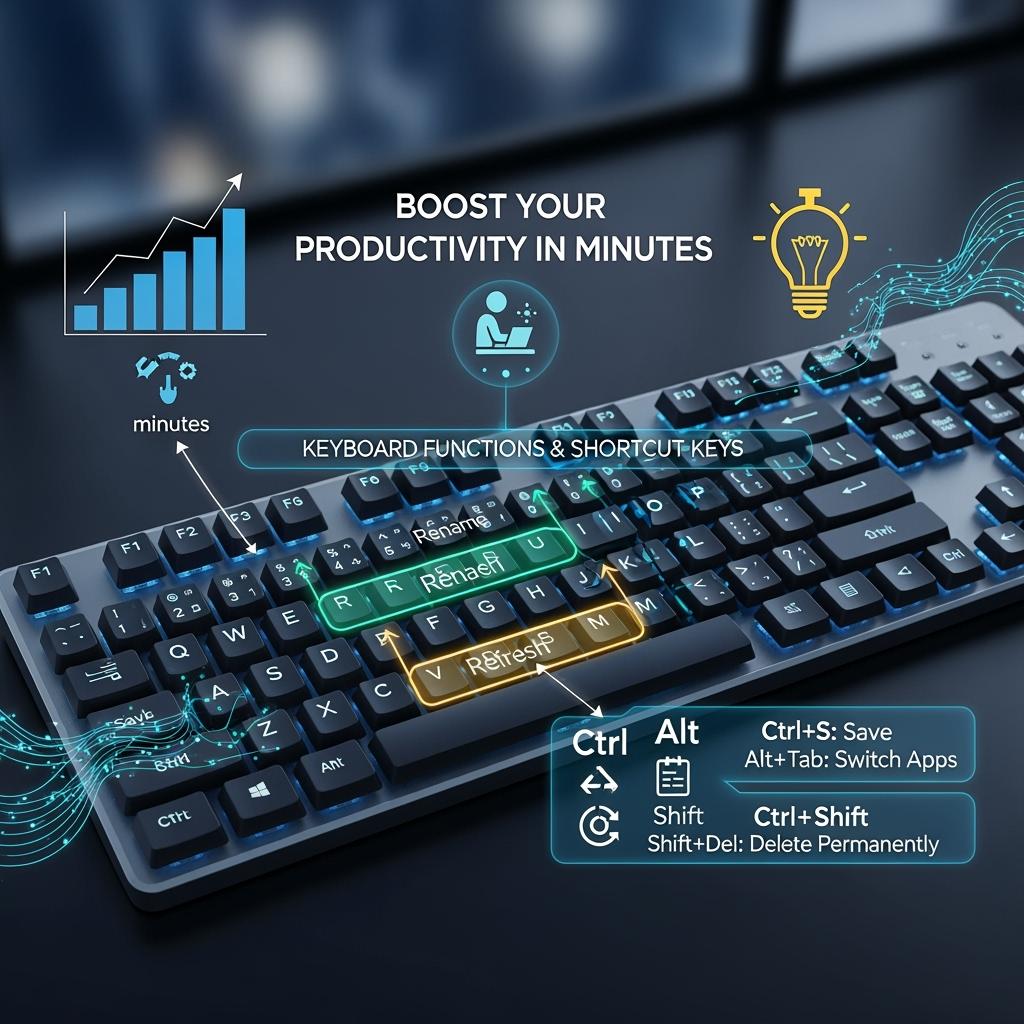
Keyboard Functions & Shortcut Keys: Boost Your Productivity in Minutes
Conclusion
In an era where efficiency and precision define productivity, keyboard shortcuts serve as powerful tools for optimizing computer use. By mastering these commands, users can streamline workflows, reduce reliance on the mouse, and complete tasks with greater speed and accuracy. Whether applied in academic, professional, or everyday settings, shortcuts not only save time but also enhance overall digital proficiency. Embracing them is a simple yet impactful step toward working smarter in today’s fast-paced, technology-driven world.
Frequently Asked Questions
What are the most important keyboard shortcuts to learn first?
Start with Ctrl+C (copy), Ctrl+V (paste), Ctrl+Z (undo), and Alt+Tab (switch applications) as these cover most basic computing needs.
Do keyboard shortcuts work the same way on Mac and Windows?
Most shortcuts are similar, but Mac uses Cmd instead of Ctrl for many combinations, while maintaining the same letter key patterns.
How long does it take to memorize keyboard shortcuts?
With consistent daily practice, most people memorize basic shortcuts within one to two weeks and advanced shortcuts within a month.