How to Fix Common Computer Problems
Introduction
Are you struggling with slow performance, unexpected crashes, or other frustrating issues on your PC? Grasping how to fix common computer problems can save you time and money and reduce stress. In this guide, we’ll walk you through practical solutions for everyday technical headaches so you can quickly learn how to fix common computer problems without relying on a technician. By the end, you’ll have the confidence and know-how to tackle issues on your own and finally understand how to fix common computer problems efficiently.
In this guide, we’ll explore the most common computer problems and how to fix them—covering software glitches, hardware malfunctions, internet troubles, storage challenges, and advanced troubleshooting techniques.
Software Issues That Slow Your Computer
Removing Unwanted Programs That Hog Resources
Many pre-installed or unused programs run in the background, consuming memory. Uninstall unnecessary applications through the control panel or system settings to free up resources.
Updating Operating Systems for Better Performance
Outdated systems can slow down performance and expose you to security risks. Regularly update Windows, macOS, or Linux to benefit from speed improvements and bug fixes.
Managing Browser Extensions That Drain Memory
Too many add-ons or extensions can slow your browsing experience. Disable or remove non-essential extensions to improve speed.
Eliminating Malware and Viruses Effectively
Run regular antivirus scans to detect threats. Malware removal tools and firewalls help protect your system and keep it running smoothly.
Hardware Problems and Quick Solutions
How to Fix Common Computer Problems
Diagnosing Overheating Issues Before They Cause Damage
Excess heat reduces performance and can damage hardware. Clean dust from fans, ensure proper airflow, and use cooling pads for laptops.
Fixing Non-Responsive Keyboards and Mice
Check USB connections or replace batteries in wireless devices. If issues persist, update drivers or test with another device.
Resolving Monitor Display Problems
If your screen flickers or won’t display, check cables, adjust resolution settings, or test with another monitor.
Addressing Strange Noises From Your Computer
Unusual sounds often signal a failing hard drive or fan problems. Back up your data immediately and replace faulty hardware.
Troubleshooting Power Supply Problems
If your computer won’t turn on, check to make sure the power supply is connected correctly.
Internet Connection Troubles
Boosting Slow WiFi Performance
Restart your router, update firmware, and switch to less crowded WiFi channels to speed up your internet.
Solving Router Configuration Issues
Restoring your router to its factory settings may resolve any misconfigurations. Secure your WiFi with strong passwords.
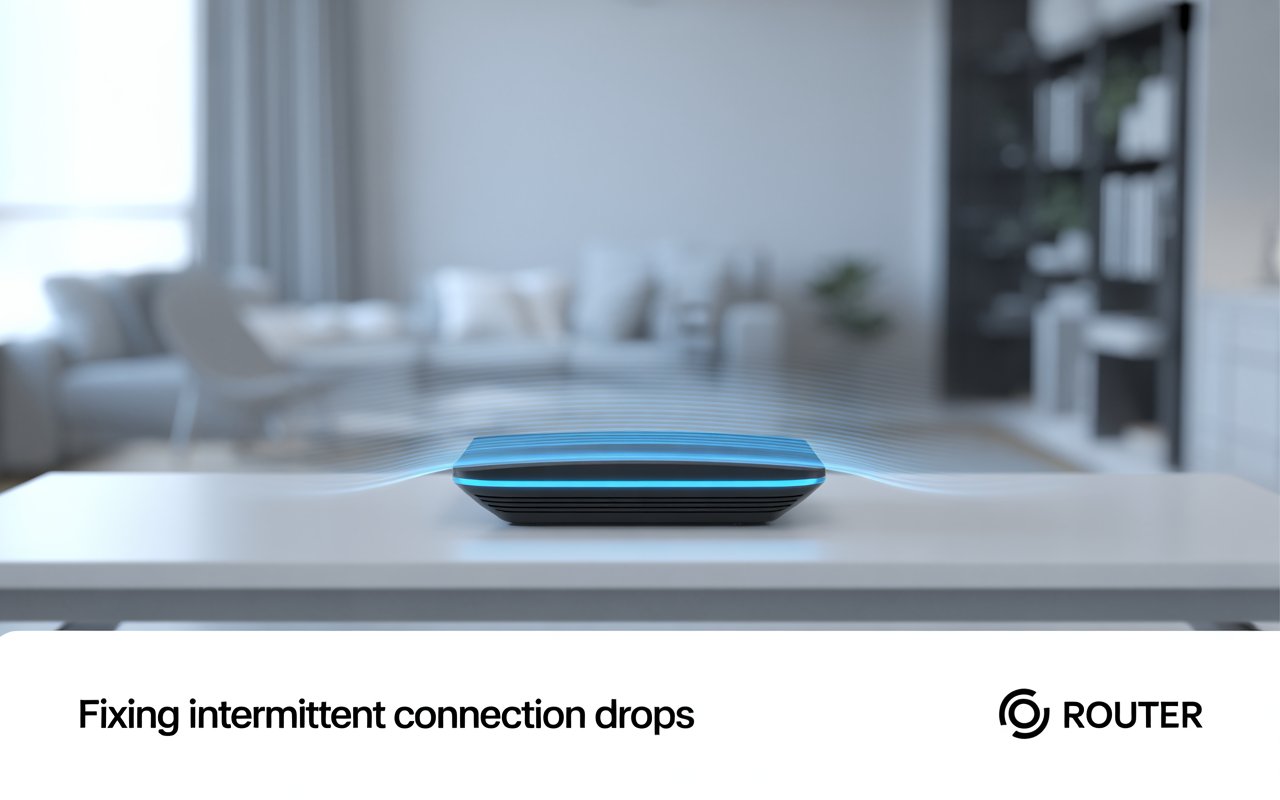
Fixing Intermittent Connection Drops
How to Fix Common Computer Problems
Check cables, test with another device, and call your ISP if problems persist.
Storage and Memory Challenges
Recovering From Hard Drive Failures
Signs include clicking noises or frequent crashes. Use recovery software or consult a professional before replacing the drive.
Managing Low Disk Space Efficiently
Clear temporary files, uninstall unused programs, and move large files to external storage or cloud services.
Upgrading RAM to Improve Performance
Adding more RAM boosts multitasking capabilities. Ensure compatibility before upgrading.
Preventing Data Loss With Proper Backup Methods
Use cloud storage or external drives for automatic backups to safeguard important files.
Advanced Troubleshooting Techniques
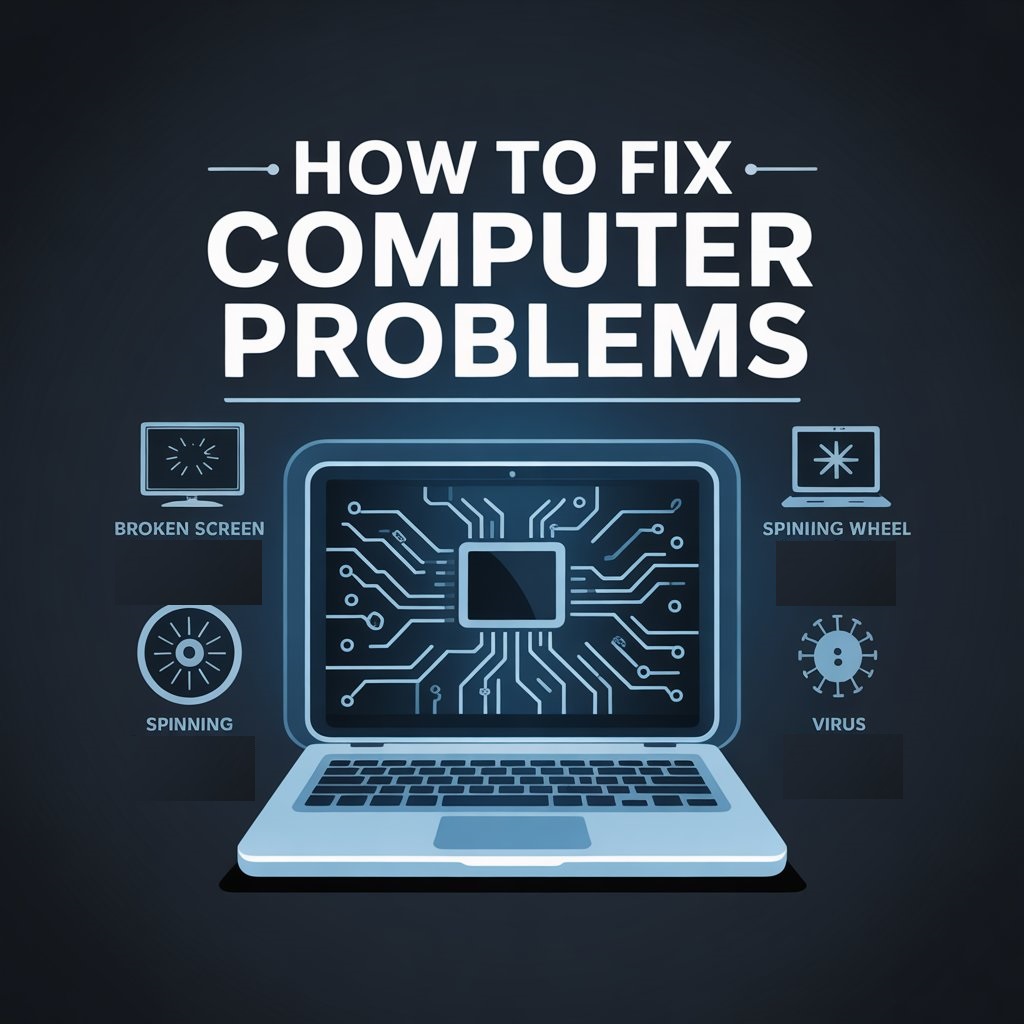
How to Fix Common Computer Problems
Using Built-in Diagnostic Tools
Windows, macOS, and Linux offer built-in utilities to identify and resolve system errors.
Reading Error Messages Like a Pro
Error codes provide valuable clues. Search them online or in official documentation for quick fixes.
When to Reset vs. When to Reinstall
A system reset has the potential to resolve ongoing problems while preserving data. If problems remain, a clean reinstall may be required.
Creating a Maintenance Schedule to Prevent Future Problems
Regular cleanups, updates, and hardware checks prevent issues from piling up.
Conclusion
By applying quick fixes and preventive care, you not only resolve immediate issues but also protect your device from future setbacks. Consistent maintenance ensures faster performance, greater reliability, and a longer lifespan—helping you stay productive without unnecessary downtime.
Frequently Asked Questions (FAQs)
Why does my computer run so slowly?
Slow computers are often caused by too many background programs, outdated software, malware, or insufficient hardware like low RAM or HDD storage.
How do I fix my computer when it freezes?
First, try pressing Ctrl + Alt + Del to open Task Manager and end unresponsive tasks. If that doesn’t help, try restarting your computer and look for any software or hardware problems.
What’s the most common computer problem?
The most common issues include slow performance, software crashes, overheating, and internet connection problems.