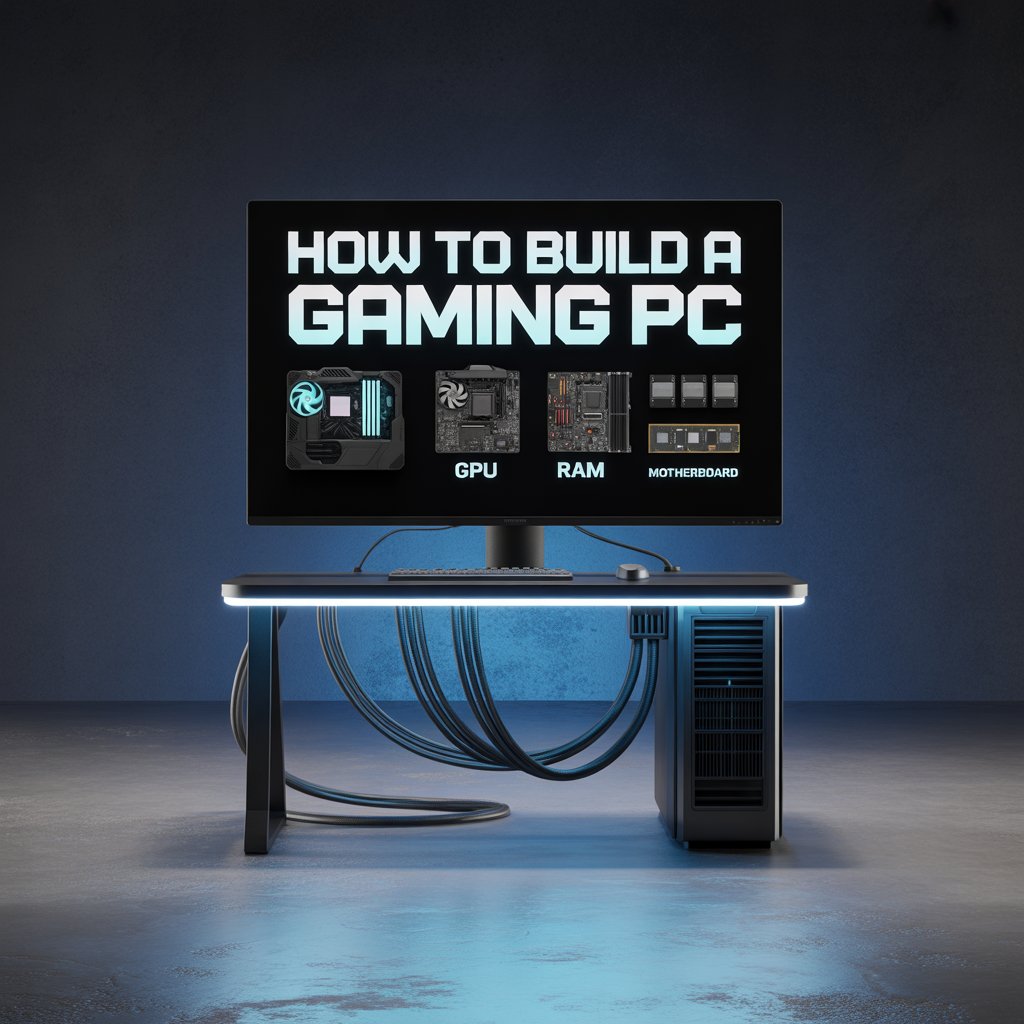
How to Build a Gaming PC: A Complete Tutorial
Introduction
Building your own gaming computer can seem daunting at first, but understanding how to build a gaming PC step by step makes the process much easier. This guide will walk you through everything from selecting components to assembly, so you can confidently learn how to build a gaming PC that meets your performance goals. By following these strategies, you’ll gain the skills and knowledge needed to optimize your setup and truly master how to build a gaming PC efficiently.
Understanding Your Gaming Needs and Budget
Assessing Your Gaming Goals and Requirements
Before choosing parts, determine the games you want to play and the desired performance level. Are you aiming for high-frame-rate competitive gaming or immersive 4K graphics? Your goals will guide component selection.
Setting a Realistic Budget
Gaming PCs can vary widely in cost. Establish a budget that balances performance and affordability, ensuring you get the best components without overspending.
Future-Proofing vs. Current Performance
Decide whether to invest in cutting-edge components for future-proofing or prioritize immediate performance. Consider upcoming game requirements and your upgrade timeline.
Making Component Priority Decisions
Some components impact performance more than others. Prioritize GPU and CPU selection before spending on extras like RGB lighting or premium cases.
Essential Components for Your Gaming Rig
Selecting the Right Processor (CPU)
The CPU handles core computations and game logic. Choose a processor with enough cores and threads to support modern games and multitasking.
Choosing a Powerful Graphics Card (GPU)
The GPU determines graphical performance. Select a card that aligns with your resolution, frame-rate targets, and desired graphics settings.
Determining Optimal RAM Configuration
For most gaming setups, 16GB of RAM is ideal, while 32GB is recommended for heavy multitasking or future-proofing. Ensure your motherboard supports your chosen RAM type and speed.
Storage Solutions: SSDs vs. HDDs
SSDs provide fast loading times and system responsiveness, while HDDs offer larger storage at a lower cost. A lot of gamers combine both for better speed and more capacity.
Picking the Perfect Motherboard
The motherboard connects all components. Ensure it’s compatible with your CPU, RAM, and storage and has the necessary ports for future expansion.
Power and Cooling Considerations
Calculating Power Requirements
Estimate total system power consumption using online calculators. This guarantees that your power supply can manage peak loads without any risk.
Selecting a Reliable Power Supply Unit
Choose a PSU with sufficient wattage and an 80 Plus efficiency rating. A high-quality PSU ensures stable power delivery and protects your components.
Air vs. Liquid Cooling Options
Air cooling is simple and reliable, while liquid cooling can provide lower temperatures and quieter operation. Choose based on budget, space, and thermal needs.
Case Airflow Optimization
Proper airflow prevents overheating. Set up fans for both intake and exhaust to ensure that hot air is effectively pushed out of the case.
Selecting the Perfect Case
Size and Form Factor Considerations
Cases come in ATX, micro-ATX, and mini-ITX sizes. Choose one that accommodates your motherboard, GPU length, and cooling options.
Aesthetics and RGB Lighting Options
Gaming cases often include RGB lighting and tempered glass panels. Select a design that fits your personal style without compromising functionality.
Cable Management Features
Look for cases with built-in routing channels, tie points, and space behind the motherboard tray to keep cables organized and airflow unobstructed.
Assembly Process: Putting It All Together

How to Build a Gaming PC: A Complete Tutorial
Workspace Preparation and Safety Measures
Use a clean, static-free workspace and ground yourself to avoid damaging components. Gather all tools and components before starting.
Step-by-Step Component Installation
First, put the CPU, RAM, and storage onto the motherboard before you place it inside the case. Then, add the GPU, connect the power cables, and make sure all the components are secured.
Cable Management Techniques
Route cables neatly behind the motherboard tray and secure them with zip ties or Velcro straps to improve airflow and maintain a tidy appearance.
BIOS Setup and Configuration
Boot into the BIOS to configure RAM speeds, boot order, and enable XMP profiles for optimal memory performance.
Software Setup and Optimization
Operating System Installation
Install your preferred OS, usually Windows for gaming, and partition drives as needed for optimal performance.
Driver Updates and Management
Update GPU, chipset, and peripheral drivers to ensure compatibility and stability.
Performance Monitoring Tools
Use software to monitor temperatures, CPU/GPU usage, and FPS to ensure your system runs efficiently.
Overclocking Basics for Maximum Performance
Overclocking can improve performance, but it increases heat and power consumption. Make small adjustments and monitor stability carefully.
Gaming Software Essentials
Install platforms like Steam, Epic Games Store, or GOG, along with game optimization tools for patch management and graphics tuning.
Troubleshooting Common Issues
Identifying Hardware Problems
If the PC fails to boot or exhibits artifacts, check connections, reseat components, and test individual parts to isolate faulty hardware.
Resolving Boot Failures
Boot issues often stem from incorrect BIOS settings, unconnected drives, or faulty components. Reset BIOS defaults and ensure all cables are correctly connected.
Addressing Temperature Concerns
High temperatures indicate poor airflow or cooling. Check fan orientation, reapply thermal paste, and consider additional cooling solutions.
Fixing Performance Bottlenecks
Analyze CPU and GPU usage. Upgrade or tweak the component causing the bottleneck to improve frame rates and responsiveness.
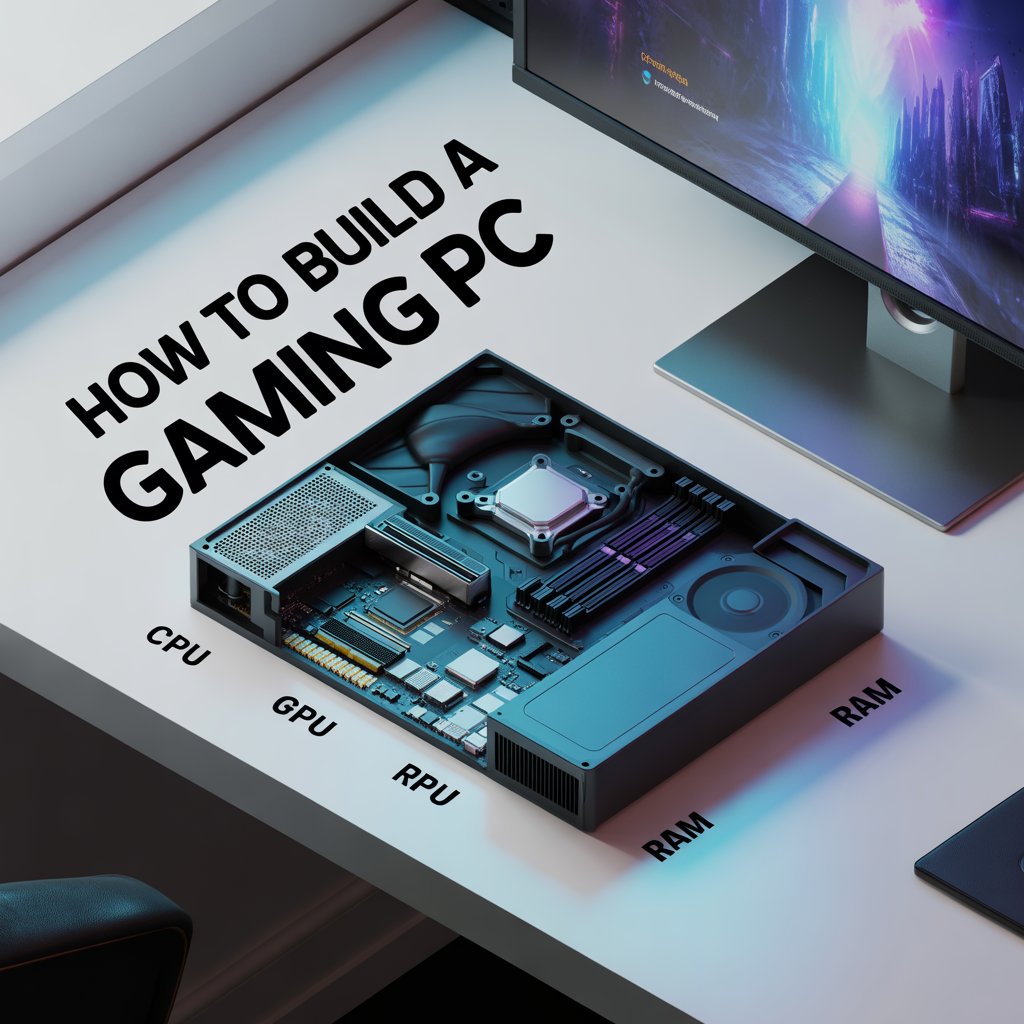
How to Build a Gaming PC: A Complete Tutorial
Conclusion
Building your own gaming PC gives you complete control over performance, aesthetics, and future upgrades. By carefully selecting components, optimizing software, and maintaining proper cooling, you can enjoy a custom system that delivers the ultimate gaming experience.
Frequently Asked Questions (FAQs)
How much does it cost to build a gaming PC?
Costs depend on performance and components. Entry-level builds start around $600–$800, mid-range $1,000–$1,500, and high-end setups with top GPUs and CPUs can exceed $2,000.
Do I need experience to build a gaming PC?
No prior experience is required. By following step-by-step guides, taking anti-static precautions, and carefully installing components, anyone can successfully build a gaming PC.
How long does it take to assemble a gaming PC?
Assembly time varies. Experienced builders can finish in 1–2 hours, while first-timers may take 2–4 hours, including installation, cable management, BIOS setup, and software configuration